Showing posts with label antec. Show all posts

Monday, January 16, 2017

NSK2480B and Asrock H170M-Pro4: Not Ideal

I recently had to change the motherboard in my HTPC. The case is an Antec NSK2480B, a horizontally aligned case that fits up to micro-ATX motherboards.

I picked up an Asrock H170M-Pro4 to put in along with appropriate CPU and RAM. Didn't think there would be an issue as the Pro4 is a micro-ATX motherboard, matching the case. No issue, right?

Unfortunately, the Pro4 is a full sized micro-ATX board, larger on the "width" axis than most of the mATX boards going around these days. It physically fits in the case, but four of the six SATA ports are arranged so that the plugs go in parallel to the board — as shown in this pic:

The Asrock H170M-Pro4 side-mounted SATA ports

In a normal case this would be okay, but the NSK2480B has a solid metal divider that runs in between the motherboard area and the drive/PSU area. The side-mounted SATA ports on such a wide board do not fit. I managed to get two 90-degrees connectors in before mounting the motherboard, but the other two ports just can't be used. The pic below shows the mounting (bit hard to see due to the other cabling):

The Pro4 mounted in the Antec NSK2480B

The wall the SATA cables are pushing against is a solid piece riveted in to the case. Other than grinding out a chunk, I can't see any way to get access to those bottom two ports.

So...a full sized micro-ATX board with side-mounted SATA ports is not a good match for this case.

Sunday, July 24, 2016

PSU Status Summary

Following along from the SSD summary, the powers supplies I've used myself or for family/friends over the past few years:

My PSUs:

Make/ModelPurchasedPurposeIssues
Powerman IP-P410Q3-2
410W
2008 (approx)General use/Gaming PCPower warnings when logging into Linux on the machine; unsure if it's the PSU or not, but it's getting a bit old. No obvious issues with it though.
Antec Neo Eco 520Dec 2012General use/gaming PC
Antec EarthWatts 380Mar 2013HTPCMachine occasionally "turns itself off" for no apparent reason, could be the PSU <- cleared of fault by the TPC-450 below
Corsair VS450Aug 2013General use
Corsair VS3502014General use
Antec EarthWatts 3802014 (2nd hand)General use
EVGA SuperNova G2 750W2014Gaming PC
Antec TPC 450 GoldJul 2016HTPC
Corsair CX550MJul 2016General use/gaming PC

Other PSUs:

Make/ModelPurchasedPurposeIssues
Thermaltake LitePower 500W (x3)2013-2014General use
Antec HCG 5202014Gaming PC
Antec Neo Eco 450C2014General use
Seasonic G-6502015Gaming PC
Antec TPC 550 Gold (x2)2015, 2016General use/Gaming PC
Corsair CX-4302016General use

Wednesday, March 2, 2016

Skylake i5-6600 Power Consumption Tests

Another machine with a few different parts but somewhat similar to the previous Skylake power consumption test I did.

System specs: i5-6600, Asus B150M-A, 2x8GB DDR4, 1x240GB Intel 535 SSD, 1xWD Blue 1TB, 1xLiteOn DVD-RW, Antec TPC 550W, Coolermaster Silencio 352. Power measurements were made from the wall (240V AC) with a PowerMate Lite.

Machine StateConsumption (W)VAPFC
Off1.5 W16.20.092
Idle30 W45.90.65
Prime 95
(Large FFTs, 4 threads)
108 W1150.939

The above values are typical. Peak recorded draw was 119.5W. Maximum temperature hit was 80°C. During Prime95 the core frequency fluctuated between 3389 MHz and 3491 MHz.

Not sure why the power usage was so much more than the 6500 system. I guess the combination of faster CPU, different motherboard, extra RAM, fan and SATA drives (even though they were at idle) and warmer "silent" case all contributed to the increase.

Monday, October 6, 2014

Build Log: Fractal Midi R2, i5 4590+H97

Putting together a new machine for a friend. This is its story...

First up, the list of parts used:

CPU: Intel i5 4590 CPU cooler: Coolermaster Hyper 212 Evo Motherboard: Gigabyte H97-D3H RAM: G-Skill Ares 2x4GB 1600MHz SSD: Plextor M5S 256GB HDD: Seagate 2TB 7200RPM ODD: Lite-on DVD-RW Case: Fractal Design Arc Midi R2 PSU: Antec True Power Classic 550W

The usual suspects

Initial reaction to the Fractal Define Arc Midi R2 is that for a mid-sized case, it's...big. At least, it's very wide. Good for big CPU coolers if needed (180mm of clearance).

The Fractal Design Arc Midi R2

The case has some nice features, including an in-built fan controller for up to three fans. The switch for fan speed levels is built into the front of the case. Switching between the speeds after completing the machine, at 12V the fans audible but not too noisy, while down at 5V they're barely audible at all.

Arc Midi R2 front panel connectors, including fan controller switch

The R2 comes with a bunch of screws, cable ties and risers as you would expect. Below is the inside of the case with both side panels removed. If there was a blemish with this case, it was that one of the side panel screws felt slightly cross-threaded when first undone. Very minor in the scheme of things, hardly worth even saying, but I liked everything else about the case :)

On to the rest of the components. CPU is the i5-4590, motherboard is the Gigabyte H97-D3H. Both solid mid-range options for a non-OC machine.

The Gigabyte H97-D3H

I've heard people say that when installing an Intel CPU for the first time, they get a bit scared by the sounds that the lever used to hold the CPU in place can make. It can make creaking sounds, but this is normal in my experience. It is applying a fair bit of force, since it needs to keep the CPU absolutely stationary in its socket.

The i5-4590 in place in the motherboard

Next I installed the RAM and cooler. I did this outside of the case, but that turned out to make accessing the top left of the motherboard awkward when screwing it in place (fat fingers!). Putting the motherboard in first and then mounting the cooler (there is a cutaway behind the motherboard that lets you do this) would have been easier. And while this is a non-overclocking machine — and so the stock cooler would have sufficed — for a little extra quietness I got the aftermarket cooler.

Motherboard with RAM and cooler installed

Adding the other components to the case was fairly straightforward. The drive bays all have rubber sound-reducing grommets to screw hard drives into, and mount points for SSDs. Cable management was an absolute breeze in this. I think I only used two of the cable ties that came in the box, the rest more or less managed itself. I'm far from great at cable management, but this case made it really easy.

The finished product...almost

The picture above is the complete machine, minus the graphics card, which I'm waiting on for stock. Intending on a GTX970, hopefully an MSI model so it will fit without needing to remove the top HDD cage. The loose cable at the bottom of the case is the PCIe power connector for the GPU. I'll post an update when the GPU is in. Currently the machine gets about 10FPS on the Unigine Heaven benchmark the poor dear. I'm sure a GPU will help out a little there.

Update: Addendum for the GPU installation.

Saturday, May 25, 2013

Case Fan Review: Antec TrueQuiet Pro, Aerocool SharkFan and Coolermaster Sickleflow

I started on a vendetta to try and get my computer to run a bit quieter. Although I think the main culprit of noise levels is the stock CPU fan, the case fans in the Corsair 300R were making some noise, so I bought a few other fans to try out.

The fans were:

  • CoolerMaster SickleFlow 120mm ($8)
  • Aerocool SharkFan 120mm Blue Edition ($13)
  • Antec TrueQuiet Pro 120mm ($20)

CoolerMaster SickleFlow (left) and Aerocool SharkFan (right)

I don't have a dB meter -- quantitative testing isn't how I roll -- so I was just going by the ear test.

The CoolerMaster SickleFlow was the cheapest and was pretty loud, louder than the stock case fan.

The Aerocool was initially really loud as well, but then I realised the "extension lead" in the packet for a voltage reducer. With this fitted it reduced the noise to about the same as the stock fan.

The Antec TrueQuiet Pro had a physical switch for adjusting the speed. At full speed it too was louder than the stock fan, but when switched down to low speed it was quieter.

Spending the extra for something like the TrueQuiet Pro is worthwhile if noise levels are important.

Wednesday, January 16, 2013

Building i5-3470: Summary

The following is a summary post for my i5-3470 build. Unfortunately a lot of the photos didn't turn out all that well, which will teach me for using my phone instead of a real camera. Oh well.

Part 1: Build Overview

Over Christmas 2012 I gathered together parts to build a new computer.

Group shot!

Machine requirements: general purpose day-to-day workhorse. Needs to be able to do most tasks from email/internet, document/artwork creation, software development, light gaming, virtual machines and (possibly) animation rendering. The last two are not going to be often, but it'll need to handle them.

Chosen parts (desktop box):

  • Case: Corsair 300R
  • PSU: Antec Neo Eco 520C
  • Motherboard: ASRock H77 Pro4/MVP
  • CPU: Intel i5 3470
  • RAM: G-Skill Ares 2x4GB
  • SSD: Samsung 830 128GB
  • HDD: Seagate Barracuda 2TB
  • ODD: Samsung 22x DVD R/W
  • OS: LinuxMint 14 (Cinnamon) [since ditched in favour of Xubuntu 12.10]

The Corsair 300R

Accessories (some added post-build):

  • Monitor: Dell U2412M (24" IPS)
  • Keyboard: Ducky DK9008 Shine II (Cherry Browns)
  • Mouse: Logitech G400

(Yes, I splashed out on an expensive keyboard. Don't you judge me!)

Part 2: Case and Power Supply

After unboxing the case and the power supply, I had a couple of minor conerns:

  • The case had a blemish on the inside about where the motherboard would sit (see image). While it might have been an indication that the case was a return and not brand new, everything else seemed fine and I'm not really sure what difference a "returned" case would make. Also, this could have just been a manufacturing thing anyway.

    Corsair 300R with minor blemish on interior

    This pic also shows up the "bump risers" in the 300R, which comes up later.
  • The box the PSU came in was a little bit beat up, but there was nothing on the inside that made me think it was anything but new.

    The Antec Neo Eco 520C

The first step is to mount the PSU in the case and screw it in. This immediately led to the question: PSU fan up or fan down? A quick web search suggested that down may be slightly better (potentially lower temps on the system, but also someone pointed out you're less likely to drop small items like screws into the fan).

The 300R has a bottom vent, so I decided to go with "fan down".

Case with PSU installed

Next potential concern: there was no voltage selector on the Neo Eco 520C. Other (cheaper) power supplies I've used have had selectors. The lack of one suggested that the Antec could handle either 115V or 240V, and reading the labelling confirmed this. So there was no need to "select" an option.

It's also worth noting that the Antec Neo Eco 520C (and I guess all Neo Ecos?) doesn't come with a power cable. For me this wasn't a problem since I had half a dozen laying around, but might be a problem for some people.

Part 3: Motherboard Installation

Some people like to install the CPU/heatsink/RAM before putting the motherboard into the case. I just whacked the motherboard in there right up front, mainly because I didn't have a place where I felt comfortable putting it to then push and prod other parts into it.

The first issue I had with the motherboard was: where are the motherboard risers? The Corsair 300R only came with one motherboard riser in the pack of screws. This confused me, since in the past the cases I'd used needed at least half a dozen risers to prop the motherboard up so it wouldn't touch the case and short out.

It turns out that the 300R has "bump" style risers, where you don't actually need to screw in anything. Convenient...once you know about it.

Motherboard with CPU installed

After that, the CPU went in without an issue. It can only go in one way, you just have to line up the bumps and indentations. The heatsink/fan was a different story.

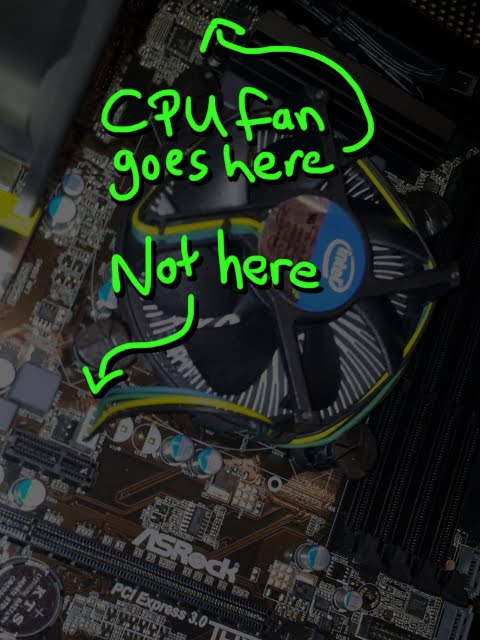
I've done it a couple of times now, so I seem to have a knack for seating the heatsink in such a way that the power cord for the CPU fan won't reach the spot on the motherboard where it plugs in. This time I misread the "CHA1 fan" as "CPU fan", and seated the heatsink accordingly. After realising my mistake, I pulled it off and rotated 90 degrees so it would plug into the correct spot. (Technically, since I pulled the heatsink off after being seated on the CPU, I should have redone the thermal paste, but since the machine hadn't ever been powered up, I felt it wasn't that much of a risk. But I noted it to check the temps first thing after powering on).

CPU fan plugged into wrong spot

The only interesting thing with the RAM is that the ASRock motherboard doesn't colour-code the slots like, say, a Gigabyte motherboard. But to use dual-channel, the RAM goes in the same way (that is, leave a gap between the RAM sticks to run in dual-channel).

Motherboard with RAM installed

Part 4: Plugs, Cables and Initial Bootup

Next was to plug in all the drives (DVD, HDD, SSD), case fans and the front-of-case switches, LEDs and USB cables.

Corsair 300R cable management (back view)

The cabling with the 300R turned out fairly nice, with the USB3 and leftover molex/PCI power cables being the most obtrusive. It really helps having someone else around to hold and adjust cables from one side while you're trying to tie them (thanks Dad).

Corsair 300R cable management (front view)

That brings us to the moment of truth: the first power on.

I flicked the switch and passed the first test: it didn't explode. However, the power cables for the CPU fan were wound so tightly around the heatsink that they caught on the fan and prevented it from spinning. This has happened almost every time I've installed an Intel stock fan, so from now on I check this before turning on.

After noticing the fan not spinning, I shut down straight away. Even though the CPU should protect itself from overheating and kill the power, it's not something you want to risk if you don't have to. I rearranged the wires of the CPU fan and everything went okay on the next powerup.

I'd forgotten that I had a Bodhilinux distro installed on the SSD from when I tested it out in a previous machine. When I turned it on (in this completely new build), it ran up without a glitch.

Initial impression of the sound is that the stock CPU fan is a little louder than the i3 3220. May have just been imagination, or something to do with re-seating it, but it's still a bit louder than what I was expecting/hoping for.

Build complete

Overall, pretty happy with the build. Next step is installing (and experimenting) with a GPU while running Linux.